Are you a student of the National Open University of Nigeria (NOUN) looking for how to join your online facilitation sessions? In this guide, we'll walk you through the step-by-step process of joining your facilitation sessions on the e-learn portal. Whether you're enrolled in GST101, CIT101, or any other course, this guide will help you quickly find your course and join your facilitation session. So let's get started!
- Start by going to the "Facilitation Timetable" page at https://mylearningspace.nouedu2.net/info/facilitation-timetable. This page has information about a lot of courses, but to save time, let's move on to step 2.
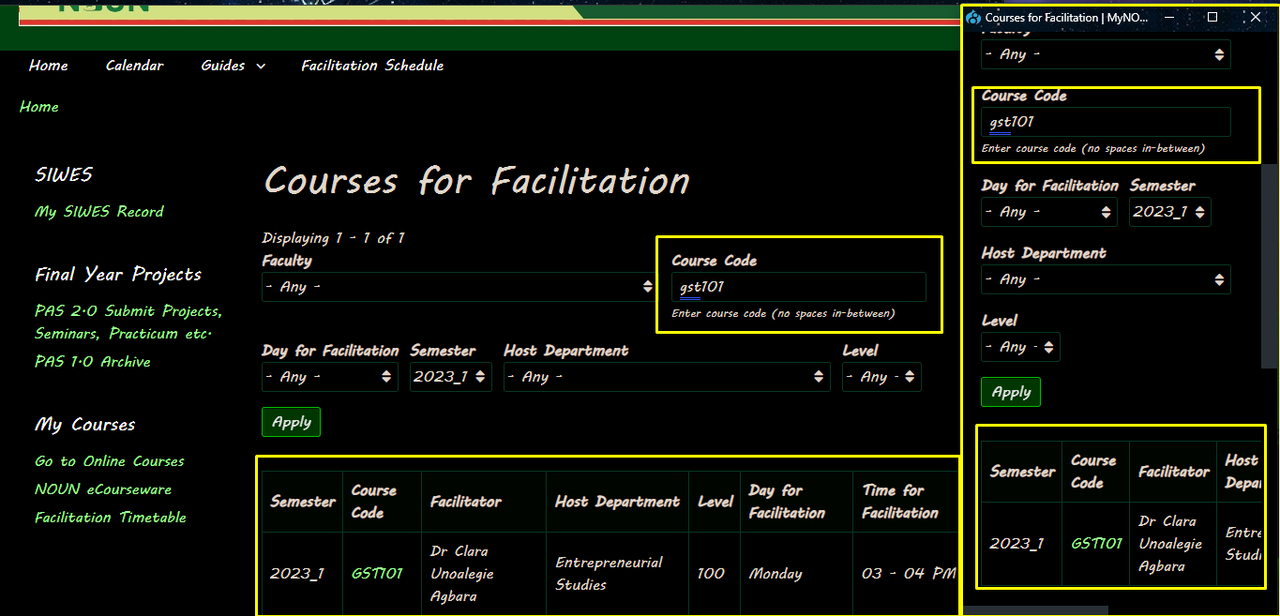 To quickly find your course, look for the "Course Code" box on the page. Just type in your course code (like GST101) and click "Apply."
- The page will now show you the details for your course, including the day and time of the facilitation session. Make a note of this information so you don't miss the session.
- On the day of your session, go to the e-learn portal by clicking this link: https://elearn.nouedu2.net/login/index.php.
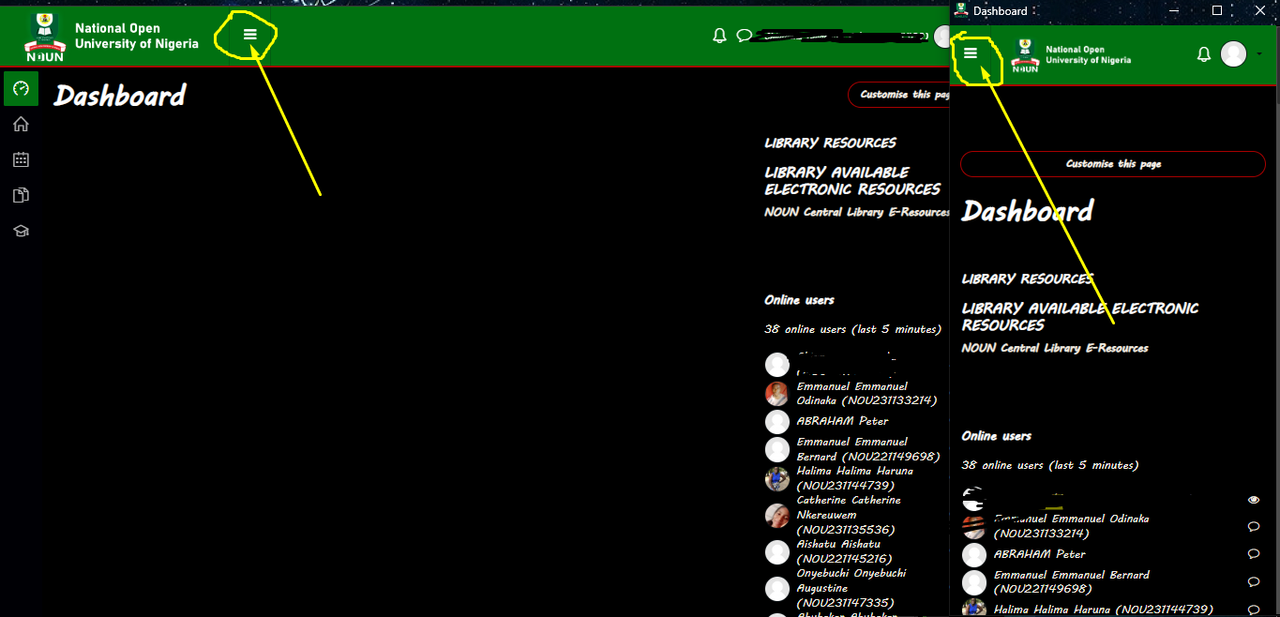 Once you're logged in, you'll see three horizontal lines in the top left corner of the screen. Click on them to open up a menu panel.
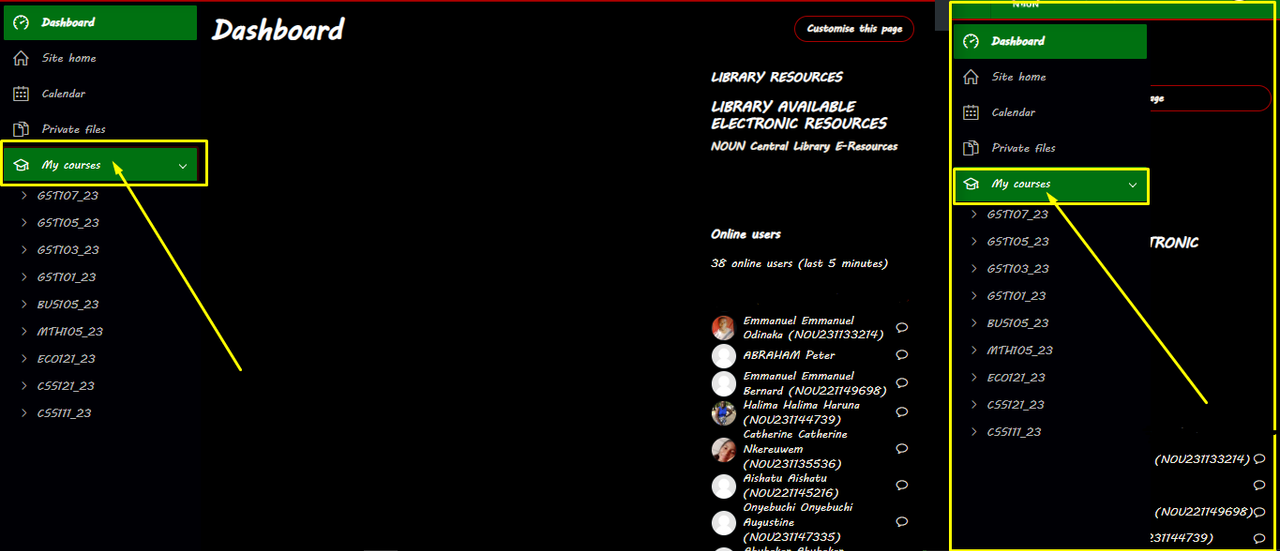 In the menu panel, you'll see an icon of a graduation cap labeled "My courses." Click on that to see a list of your enrolled courses.
- Look for your course in the list and click on it. For example, if your course is GST101, click on that.
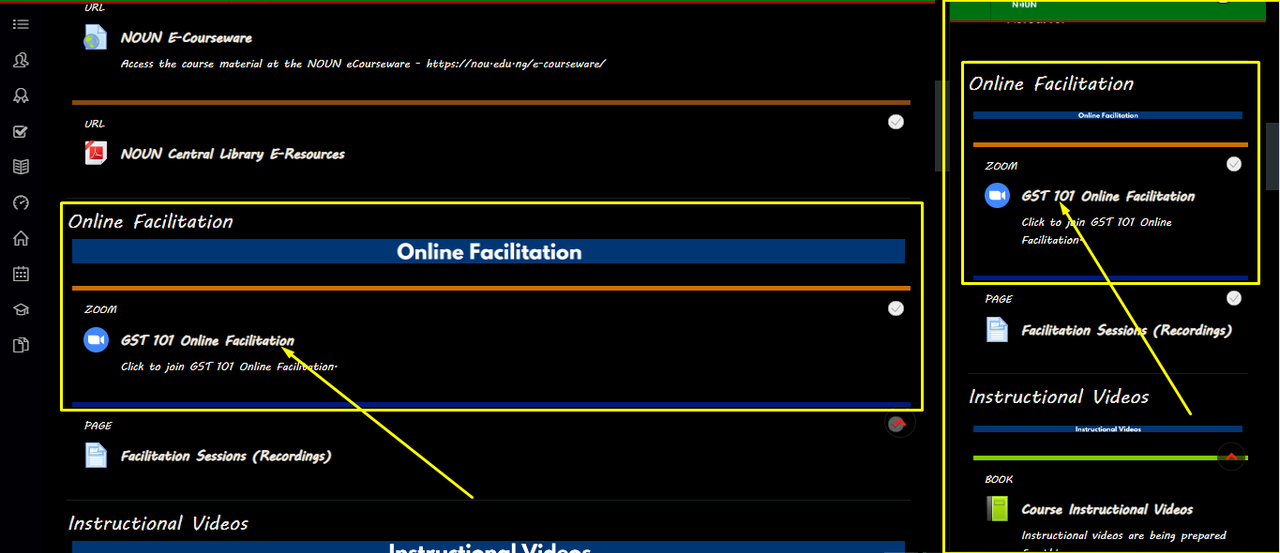 Scroll down the page until you see a section that says "GST 101 Online Facilitation Zoom meeting." Click on the "Join GST 101 Online Facilitation" button to join the meeting.
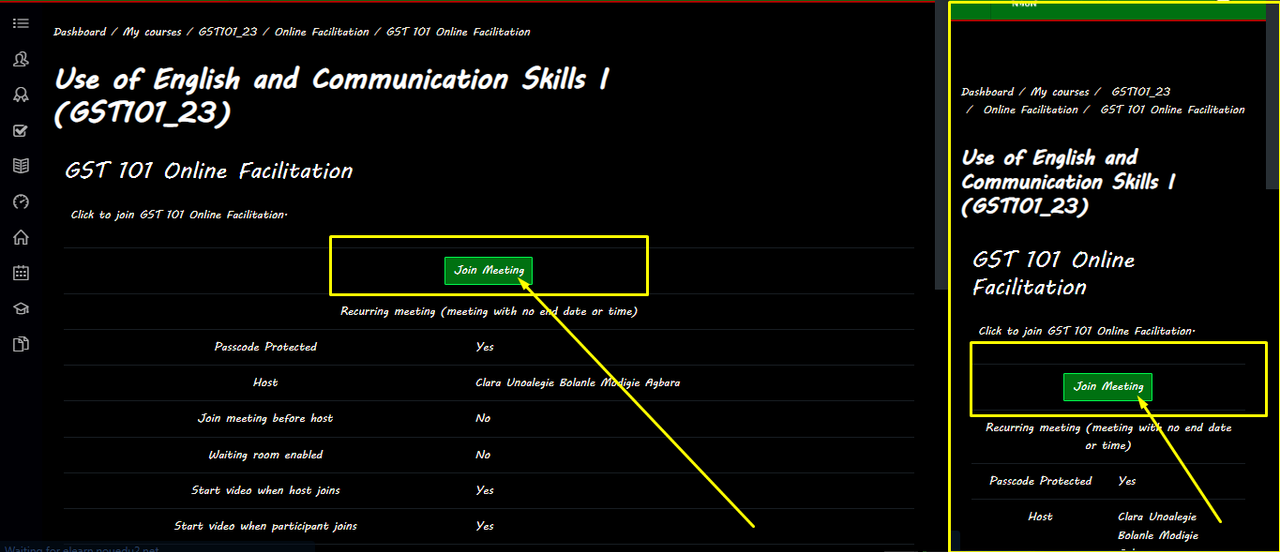 A new page will load with information about the facilitation session, including a "Join Meeting" button. Click that button to enter the meeting.
- If the meeting has started, you'll see the facilitator teaching. If it hasn't started yet, you'll see a message that says "Please wait for the host to start the meeting."
- If you're prompted to choose an app for the meeting, select Zoom.
- That's it! Enjoy your facilitation session and make sure to attend all scheduled sessions so you don't miss any important information.



Share your thoughts about this post